Data Conversation agent (DCA)
What is DCA (Data Conversation Agent)?
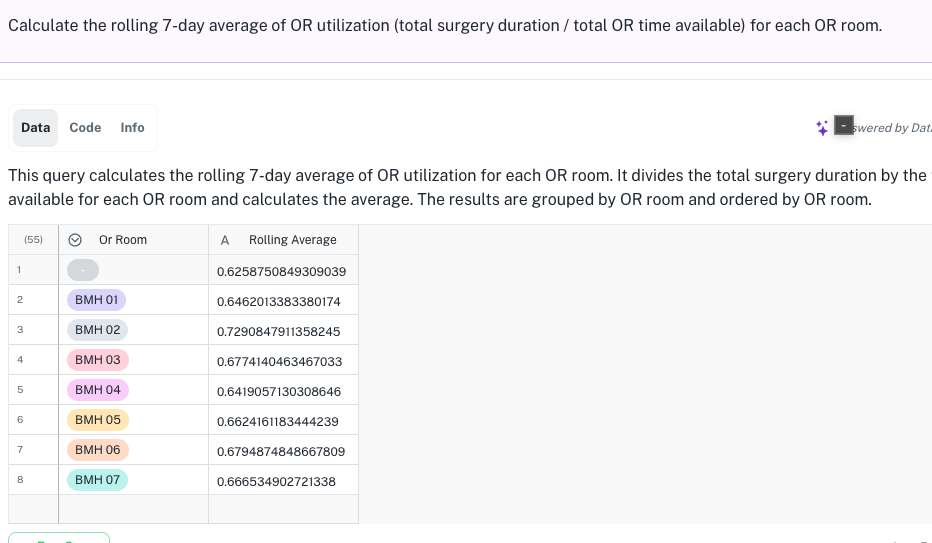
The DCA is an intelligent agent designed to help you analyze and interact with your data using natural language queries.
Key Capabilities:
-
Data Querying: Ask questions about your data in plain English.
-
Contextual Awareness: Understands queries across different workbooks within the same workspace.
-
Dynamic Results: Generates tables, charts, and text-based responses.
Accessing DCA
The DCA is typically accessed directly from within a workbook interface. The agent usually appears as a chat panel or interface within your workbook environment.
1.gif)
How to use the DCA?
Asking general and schema-based questions
The DCA can provide general guidance on your data schema.
-
Open the DCA chat panel while viewing a workbook (e.g., "Sales Data").
-
Ask a general question, such as:
-
"How can I ask questions on this schema to understand where my sales are going?"
-
"Suggest questions for analyzing this data."
-
-
Result: DCA will provide text-based responses and suggestions (e.g., "See sales by region," "sales by time period").
Leveraging workspace-level context
DCA can answer questions about one workbook even when you are currently focused on another.
-
Navigate to a primary workbook (e.g., you are on the "Sales Data" tab).
-
Ask a question about a different workbook in the same workspace:
- "How does travel affect employee attrition?"
-
Verification: Check the Info Tab or context box associated with the answer. It will correctly show the source of the data (e.g., "Employee Attrition" workbook) used to generate the result.
Building on previous queries (History and Context)
The DCA remembers the context of the conversation, allowing you to refine your analysis incrementally.
-
Ask an initial query: "Show me month-to-date and year-to-date sales."
-
Ask a follow-up query without repeating the full context: "Now show me sales by month for this year."
-
Context Awareness: DCA understands the implied context and automatically adds the necessary filters (a
WHEREclause for "this year") to the new query. -
Time Awareness: DCA now understands relative time terms like "today," "last year," and "previous quarter."
Saving results as a Subview (Live Data)
You can save the result of a DCA query as a permanent, dynamic view within the source workbook.
-
Option 1: Using the Button
- Click the dedicated "Create Subview" button associated with the query result.
-
Option 2: Using the Chat
-
Type a command into the chat, such as: "Create this as a subview."
-
DCA will intelligently identify the source workbook (e.g., "Employee Attrition") that provided the data and create the subview there.
-
-
Result: The subview is created in the appropriate source workbook and remains live; it will update as the underlying data changes.
Managing your conversation history
Your query threads are automatically saved in the left panel.
-
Rename: Click on the thread name to rename it (e.g., "Sales Analysis - May").
-
Privacy: To ensure only you can access a thread:
-
Select the thread.
-
Mark it as Private. It will then appear in the Mine tab and be hidden from other users in the workspace.
-
-
Deletion: You can only delete the threads and individual questions you have created.
Pinning and Downloading Results
-
Pin: Use the Pin button on a result to highlight it. Pinned messages are visible to other users.
-
Download: Use the Download button to save the result set as a local file, typically a CSV.
- Note: Downloaded data is static and will not update if the source data changes.
3.7. Providing Feedback
You can help improve the DCA's performance by providing feedback on its responses.
-
Use the Like 👍 or Dislike 👎 options below a result set.
-
This feedback is collected by the development team to understand and fix issues with agent accuracy and experience.
Was this helpful?