GRC agent
Understanding GRC
GRC (Governance, Risk Management, Compliance) is a structured, integrated approach to aligning IT with business goals while managing risks and meeting all industry and government regulations.
-
Governance: The set of policies, rules, and frameworks that ensure organizational activities (like IT operations) align with business goals.
-
Risk Management: The process of identifying, assessing, and controlling threats to an organization's capital and earnings (e.g., cybersecurity, legal, and financial risks).
-
Compliance: The act of adhering to laws, regulations, and internal policies (e.g., GDPR, HIPAA, or ISO 2700)
What is GRC Agent?
The GRC Agent is an AI-driven tool designed to automate the evaluation of a company’s policies and practices against specific sets of rules or international standards. It streamlines the complex process of verifying whether an organization is adhering to its governance requirements, managing risks effectively, and staying compliant with internal or external mandates. Evaluating compliance manually is time-consuming and prone to human error. The GRC Agent is used to:
-
Ensure consistency: It compares documents objectively based on predefined "Control Files."
-
Identify gaps: It automatically detects where a company's policy (Target) fails to meet the required standard (Source of Truth).
-
Provide scalability: It can process multiple complex documents and extract numerous rules (controls) simultaneously.
-
Quantify compliance: It generates a numerical "Compliance Score" and categorizes risks (e.g., High, Low, Critical).
GRC agent compares your company's actual practices (Target) against a master set of rules (Standards) by extracting specific requirements from a Control File. The GRC agent operates by analyzing the following types of inputs:
-
Standards Policy folder: The Source of Truth containing documents that define the ideal rules (e.g., ISO standards, internal IT governance).
-
Target Policy folder: The documents belonging to the company being audited (e.g., their specific password policy or access logs).
-
Control file: A specific document that tells the agent which rules to look for during a specific run (e.g., an "Access Control" requirements file).
Key use cases
-
Access control audits: Verifying if a company follows the "Principle of Least Privilege" or if Multi-Factor Authentication (MFA) is strictly enforced.
-
Password policy evaluation: Checking if a company's password requirements (length, complexity, rotation) match the master standard.
-
Vendor risk management: A governing body or large corporation can use the agent to evaluate the security policies of third-party vendors before onboarding them.
-
Internal compliance health checks: Companies can run their own policies against updated international standards to find and fix "gaps" before a formal audit.
Conducting an automated compliance evaluation with the GRC agent
Follow these steps to conduct an automated compliance evaluation using your GRC Agent.
Step 1: Prepare Your Document Folders
Before starting the agent, organize your data into two distinct categories:
-
Standards folder: Upload the "Source of Truth" documents. These include international standards (ISO, NIST), regulatory mandates, or your company's master governance policies.
-
Evaluate (Target) folder: Upload the documents you want to audit. These could be specific department policies, system logs, or a vendor’s security questionnaire.
Step 2: Upload a Control file
The Control file acts as the "rubric" for the audit. It is a text document listing specific requirements (e.g., "MFA must be enabled for all admins" or "Passwords must be 14 characters"). You must upload this file to the GRC Agent. The agent will automatically parse the text and extract individual Controls (rules) to test.
-
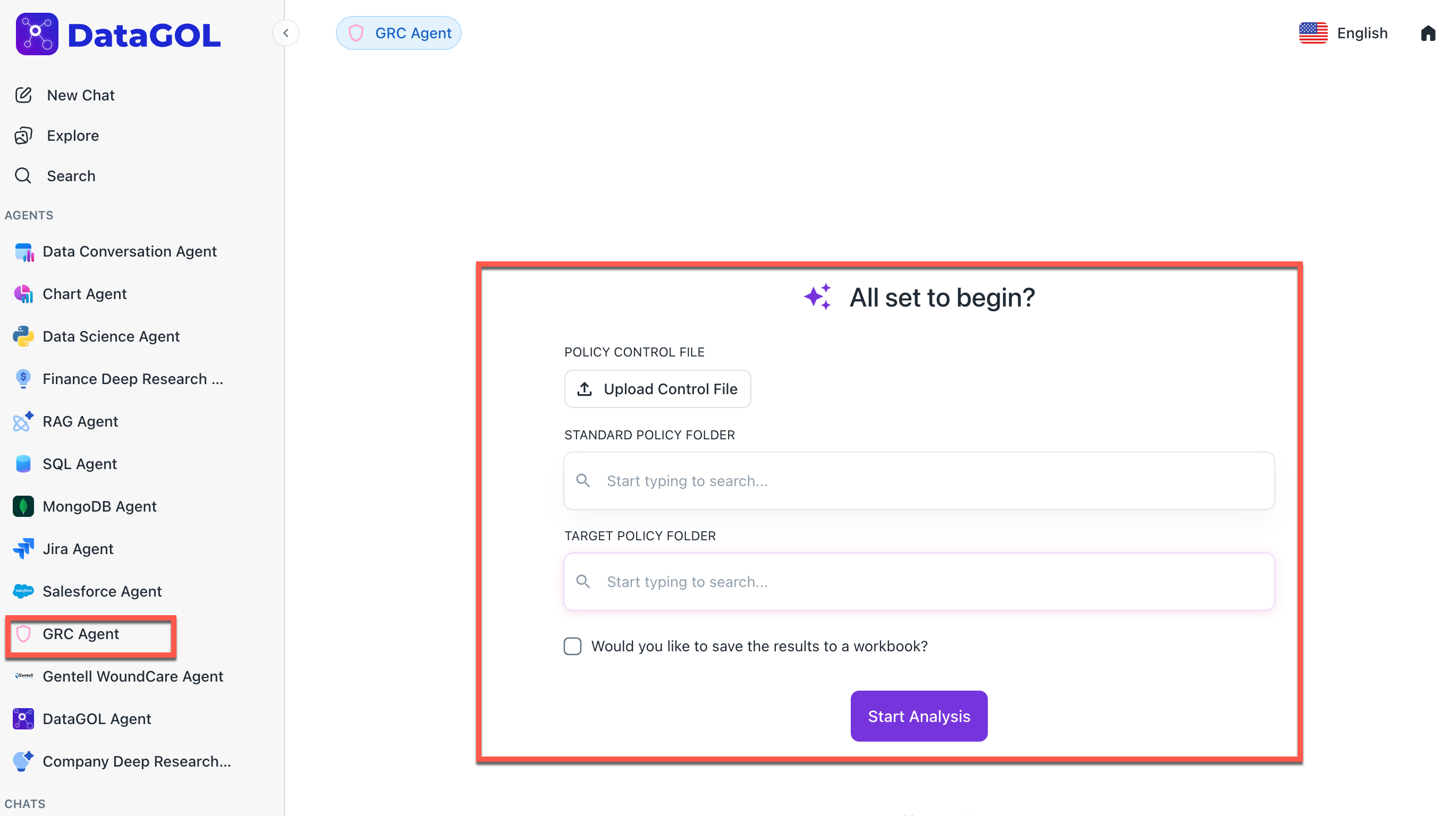
From the DataGOL Home page, navigate to the Agents section and select GRC Agent
-
Under Policy Control File, click Upload Control File and upload the Control file.
Step 3: Configure the Analysis
Within the Agent interface:
- Under the Standard Policy Folder, select the Standard Document Set to use as the reference.
- Under the Target Policy Folder select the Target Document Set (the company/policy you are evaluating).
Review the Extracted Controls to ensure the agent correctly identified the rules from your Control File.
Step 4: Run the Evaluation
Click Start Analysis. The Agent will perform the following background tasks:
-
Query Generation: It creates specific AI queries for each control (e.g., "Does the target document mention a 14-character password minimum?").
-
Parallel Search: It searches both the Standards and Target folders simultaneously.
-
Comparison: It compares the findings to see if the Target meets the Standard.
Step 5: Review the Compliance Report
Once the analysis is complete, review the generated summary:
-
Overall Score: A percentage representing total compliance.
-
Status Indicators: Controls will be marked as Compliant, Partially Compliant, or Non-Compliant.
-
Gap Identification: For non-compliant items, the agent will list the specific "Gaps" (e.g., "Target document lacks explicit details on session timeouts").
-
Key Evidences: The agent provides direct quotes from the documents to support its findings.
Troubleshooting & Best Practices
-
The "Gray" Status: If a Control shows an error (Gray), it usually means a rate limit was hit, or the document text was unreadable. Try re-running that specific control.
-
Control Specificity: The more specific your Control File is, the more accurate the AI's "Gap Analysis" will be. Avoid vague language like "have good security."
-
Documentation: Always download the final report as a PDF for your official audit trail.
Was this helpful?