Knowledge Graph agent
What is a Knowledge Graph agent?
The Knowledge Graph feature allows you to interact with and extract structured information from documents like PDF and Word files. It works by transforming the document content into a network of entities (like people or organizations) and their relationships, which enables complex queries using AI.
Key Concepts
Understanding these terms will help you use the Knowledge Graph effectively:
-
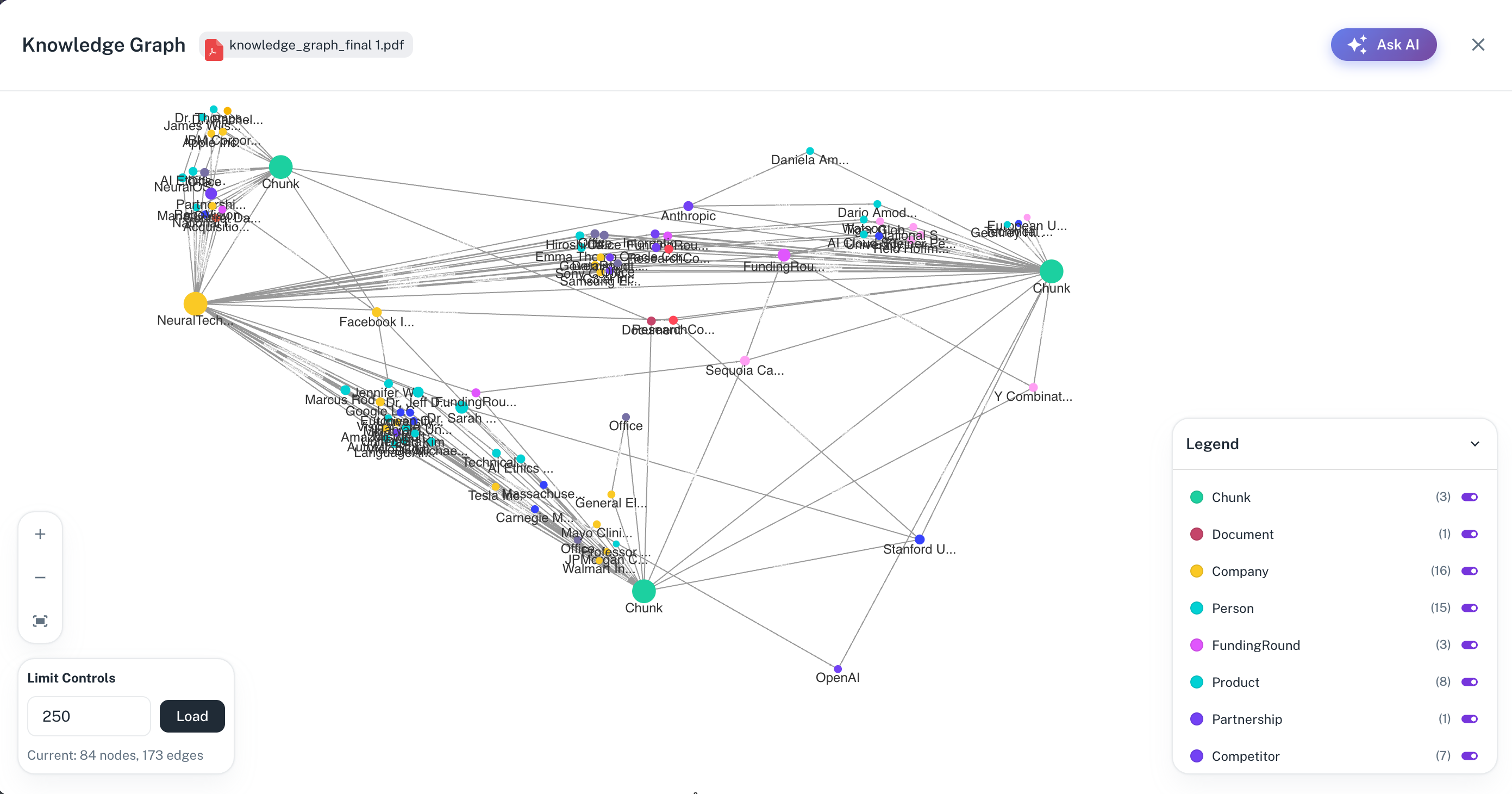
Entity/Node: A primary item or concept extracted from the document (e.g., a Person, an Organization, or the Document itself). These are represented as colored dots (nodes) in the graph visualization.
-
Relationship/Edge: The connection or link between two entities (e.g., Person "work for" Organization). These are represented as lines or arrows (edges) connecting the nodes.
-
Ontology: The complete set of entities and their relationships extracted from the document, forming the structure of the Knowledge Graph.
-
Cipher Query: A specialized query language (similar to SQL) that the AI agent uses in the background to search and retrieve information from the Knowledge Graph database (Neo4j). Your natural language questions are converted into Cipher queries.
Using the Knowledge Graph agent
Follow these steps to use the Knowledge Graph feature:
1. Access the document and check graph status
-
Navigate to the Document section within a workspace.
-
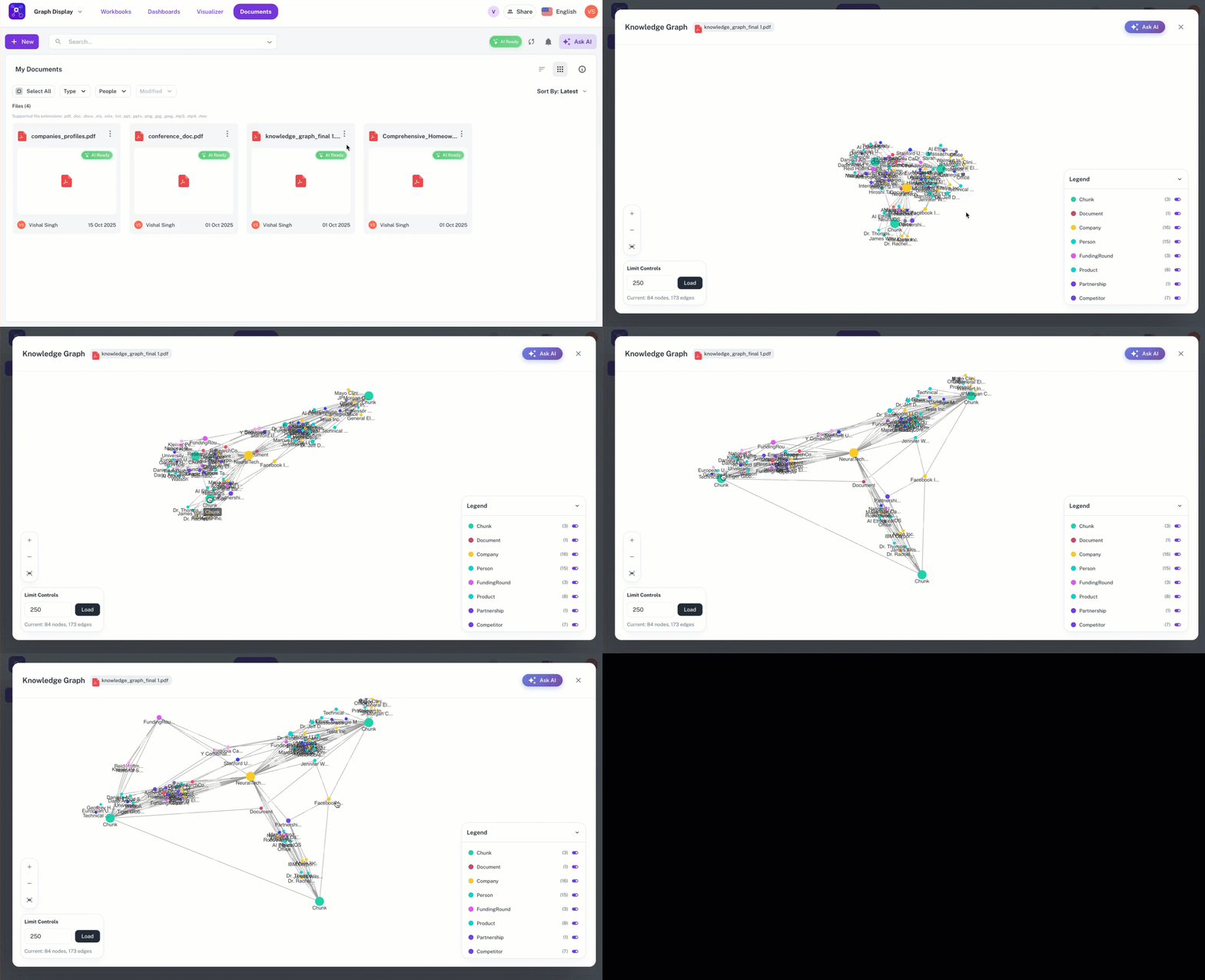
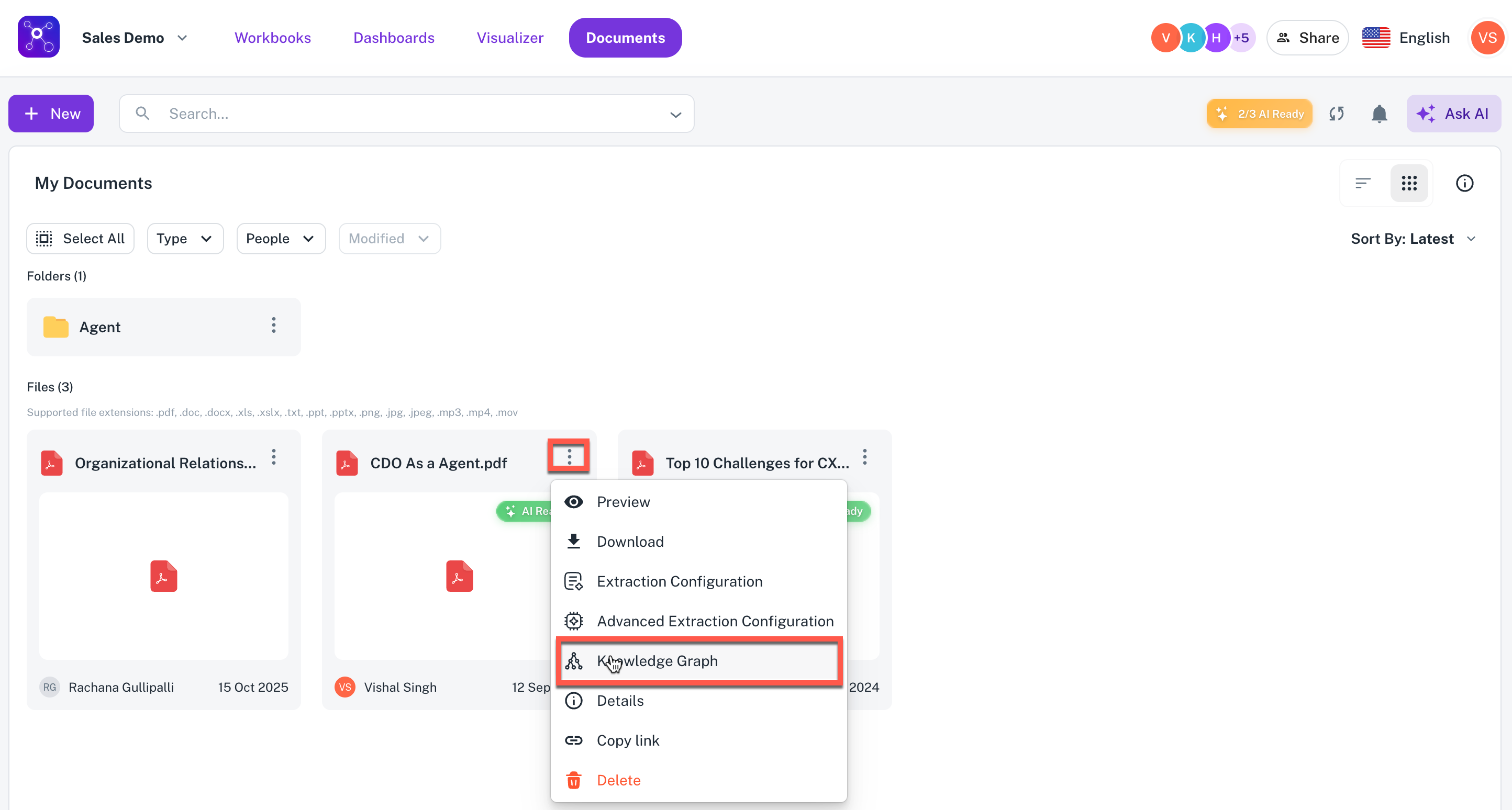
Select a document (e.g., a PDF), click more options and select Knowledge Graph. If a graph is already created, it will be displayed, else, you will have to create the Knowledge Graph. See steps below to create the Knowledge graph.
2. Create the Knowledge Graph
If the graph is not yet created, you need to initiate the creation process:
-
Navigate to the Document section within a workspace.
-
Select a document (e.g., a PDF), click more options and select Knowledge Graph.
-
Click the Start Creating Graph button.
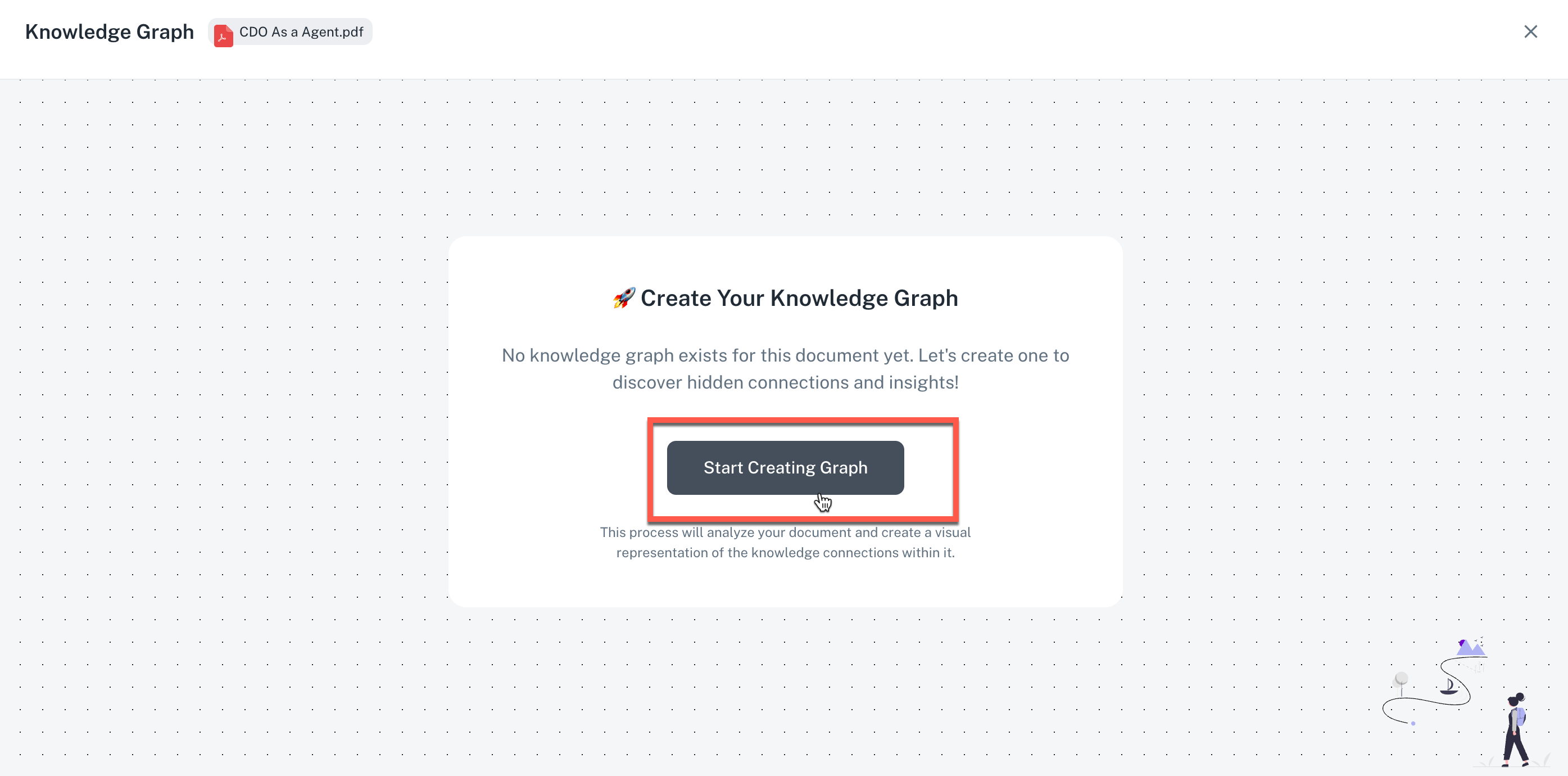
The system begins the graph creation. This process involves:
-
Creating the Ontology (extracting entities and relationships).
-
Building the actual graph.
-
-
Wait for the creation to finish. The time required depends on the size of the document (it typically takes less than 5 minutes).
3. View and explore the Knowledge Graph
Once the graph is created, you can visualize the extracted relationships:
-
Go to the Knowledge Graph section to view the interactive graph visualization.
-
Navigate to the Document section within a workspace.
-
Select a document (e.g., a PDF), click more options and select Knowledge Graph.
-
-
Observe the graph, where different colored nodes (e.g., red for Document, blue for Person) represent entities, and arrows represent the relationships between them.
-
Use the controls to adjust the sample of the graph being displayed:
-
Adjust the lower limit (e.g., to 10 or 20) to focus on a smaller, clearer subset of the graph.
-
Adjust the upper limit (e.g., to 1000) to load a larger portion of the nodes and edges.
-
-
Drag the nodes around the screen to better visualize and understand the connections and relationships.
-
Refer to the legends (e.g., colors, icons) on the screen to identify what each node type represents.
Control graph limits in the Knowledge Graph agent
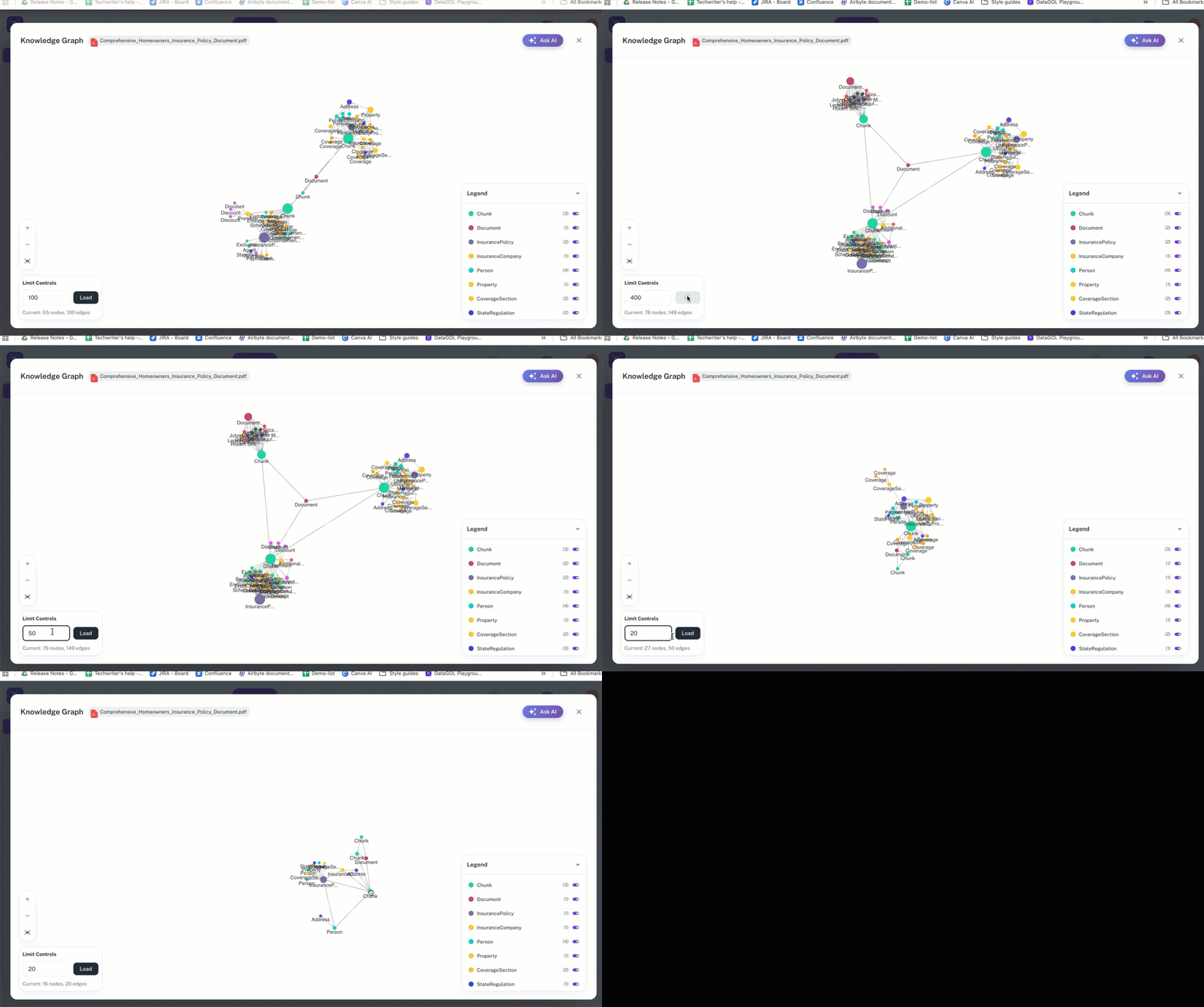
When viewing the Knowledge Graph, you are often viewing a sample of the total nodes and edges. Use the controls to adjust the amount of data visualized:
-
On the Knowledge Graph, on the lower left corner, find the Limit Control box that shows the current number of nodes and edges (e.g., "113 nodes" and "224 edges").
-
Adjust the Lower/Upper Limit as follows:
- To view a smaller, cleaner portion of the graph, enter a lower number (e.g., 10 or 20) into the relevant field. The graph will reload to show only that number of nodes and edges.
- To load a much larger section of the graph, enter a higher number (e.g., 500 or 1000) into the relevant field. This will load more nodes and edges, showing more relationships, but may make the visualization denser.
-
Observe the change.After changing the value, the graph will update to reflect the new sample size.
4. Ask AI Questions
The primary way to interact with the Knowledge Graph is by asking questions:
-
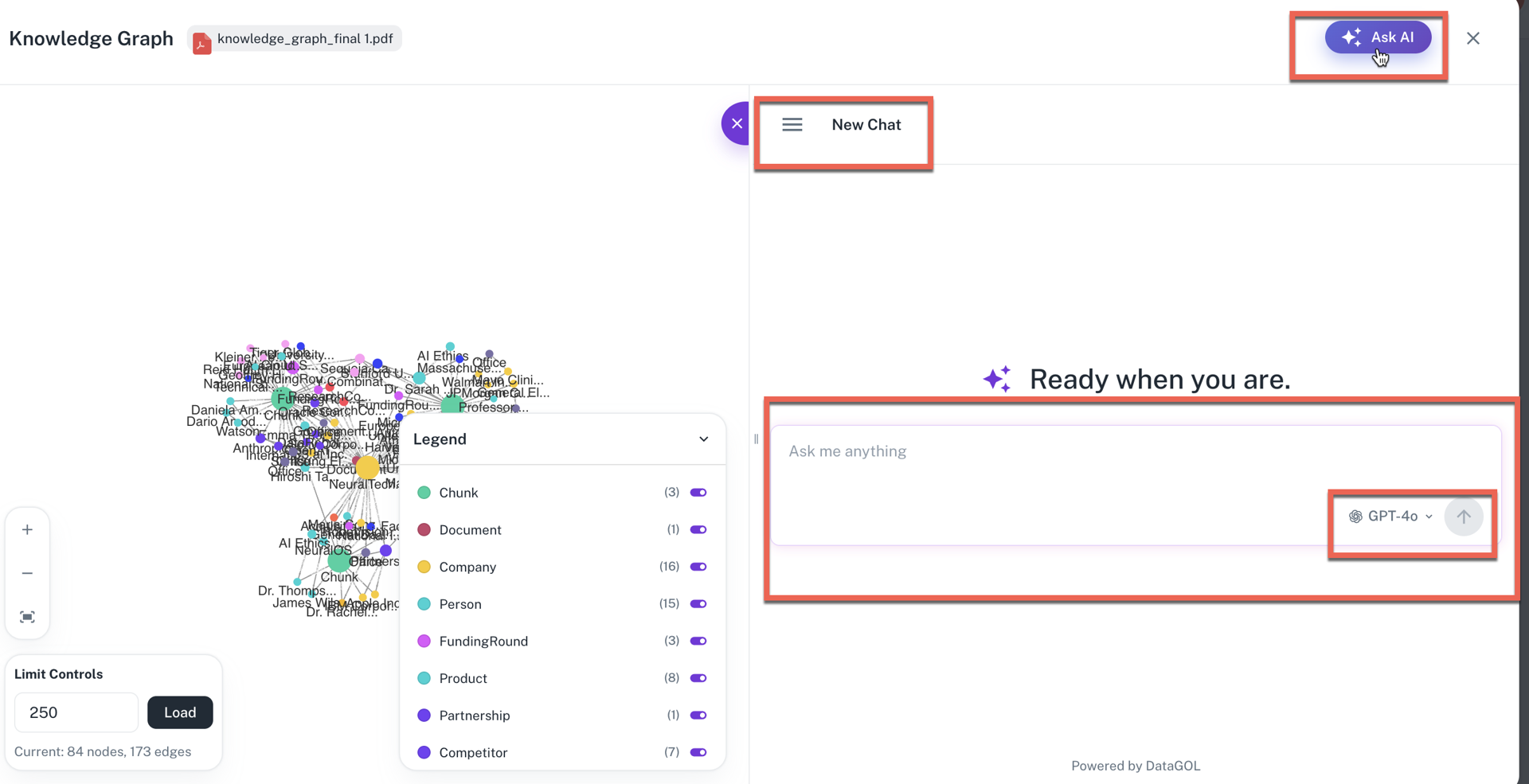
Click the Ask AI button (this button appears after the graph is successfully created).
-
Enter your natural language question about the document's content, focusing on relationships (e.g., "Who is the CEO of this company?" or "Give me the website of the organization related to Parisa.").
-
The agent will process your question, convert it into a Cipher query, retrieve data from the graph, and provide a direct answer.
5. Manage the AI Chat Session
In the Ask AI chat window, you have several options:
-
View history: Check your previous chats and questions.
-
Start a new chat: Begin a fresh conversation.
-
Change model: Select a different Language Model (e.g., GPT-4, Claude) to re-run your current question and get an alternative response.
-
Edit message: Modify your previous question before re-running it.
-
Copy/Delete: Copy the AI's response or delete the current query/chat.
Example AI Questions
These questions leverage the structured data of the Knowledge Graph to provide specific, accurate answers:
-
Relationship query: Who is the CTO of the company 'campuses'?
-
Specific attribute retrieval: What is the email address for the person named David?
-
Organization-focused query: Give me the website of the organization related to Paris.
-
Role/Title query: What is the job title of the person with the last name George?
-
Descriptive information: What is the 'advice for starting out' shared by the person who works for Community Hospice and related care?
-
Multi-Hop query (Less Direct): Which organization does the person with the 'learning statement' title work for?
Was this helpful?