Download/ Schedule Dashboard
USER GUIDE
Download/ Schedule Dashboard
We've introduced Download and Scheduling of Dashboard as PDF experience for BI dashboards, making it easier to generate professional, presentation-ready reports directly from your dashboards.
What's new:
-
Enhanced PDF rendering for improved visual quality and consistency.
-
Improved layout handling to better support different dashboard configurations and widget arrangements.
-
Refined formatting to ensure charts, tables, and dashboard components are exported more accurately.
-
Updated preview experience, allowing users to review the output before generating the PDF.
-
More reliable PDF generation for a smoother export experience across supported dashboards.
How to export a dashboard as PDF:
-
Open the desired Dashboard.
-
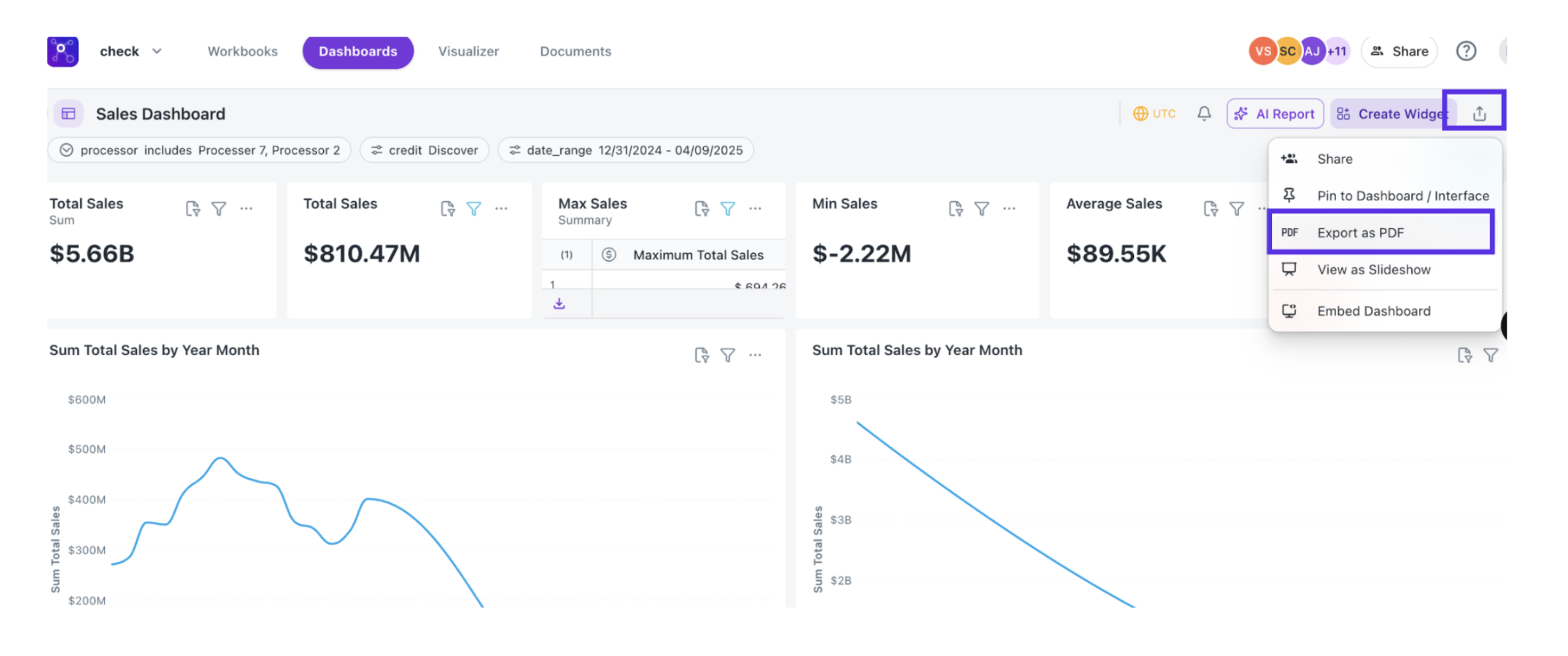
Click Share in the top-right corner.
-
Select Export as PDF.
-
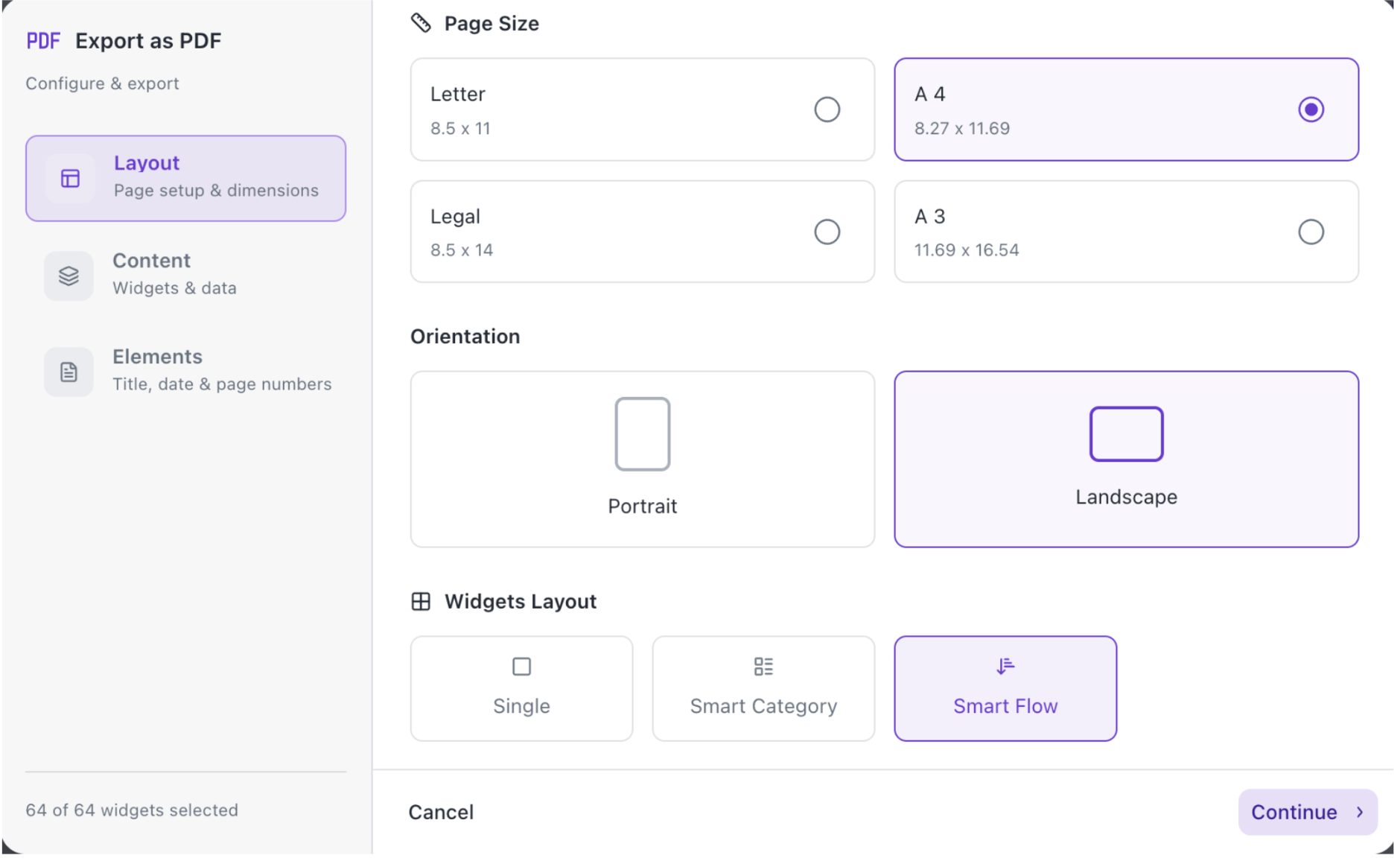
Configure the export options and review the preview.
-
Single – Prints one widget per page, in the same order as the dashboard.
-
Smart Category – Prints KPIs first, followed by Charts, then other widgets; Original dashboard order is not preserved
-
Smart Flow – No predefined format; widgets are arranged dynamically, e.g., one chart + two KPIs, two KPIs, two charts, or one chart per page
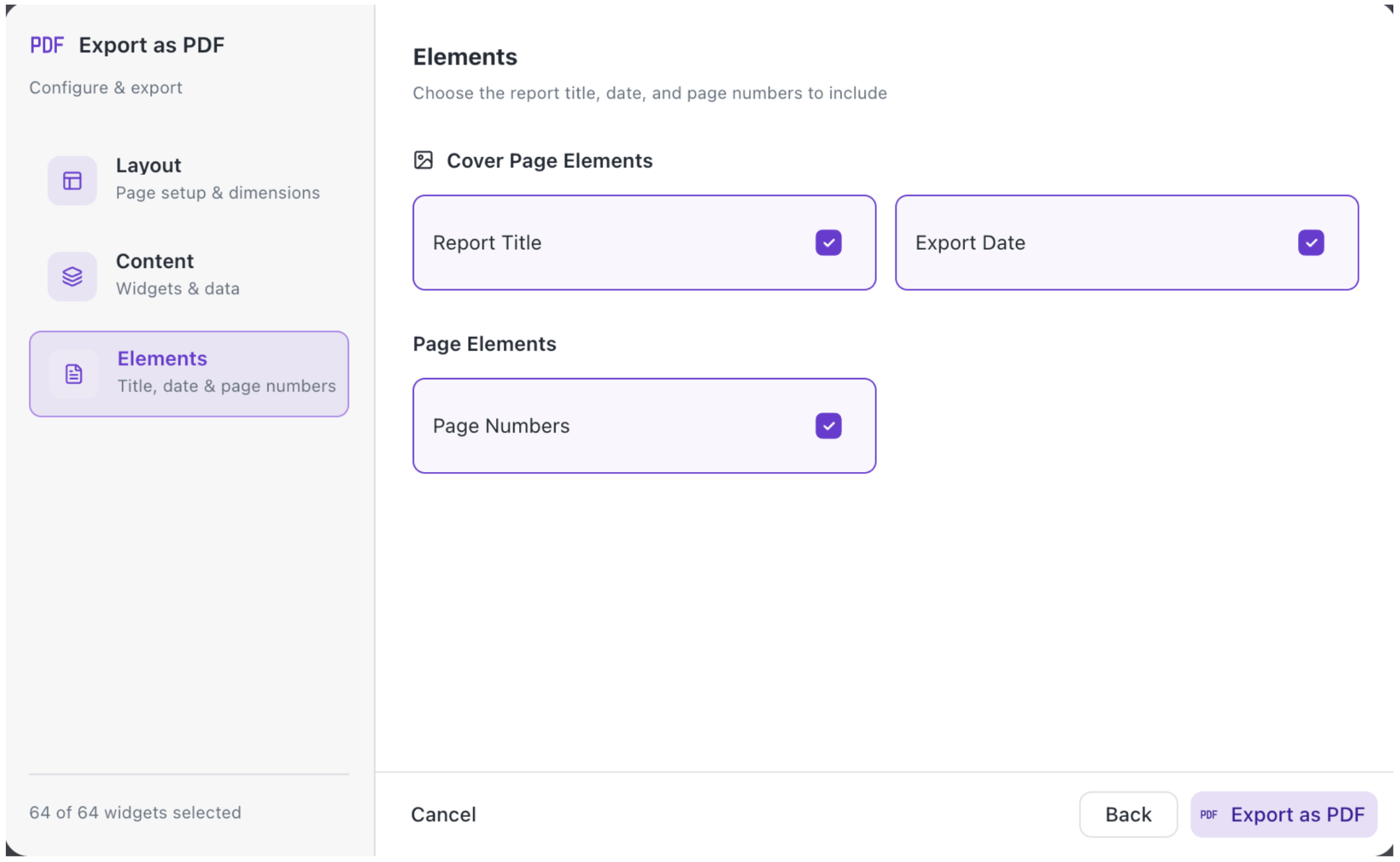
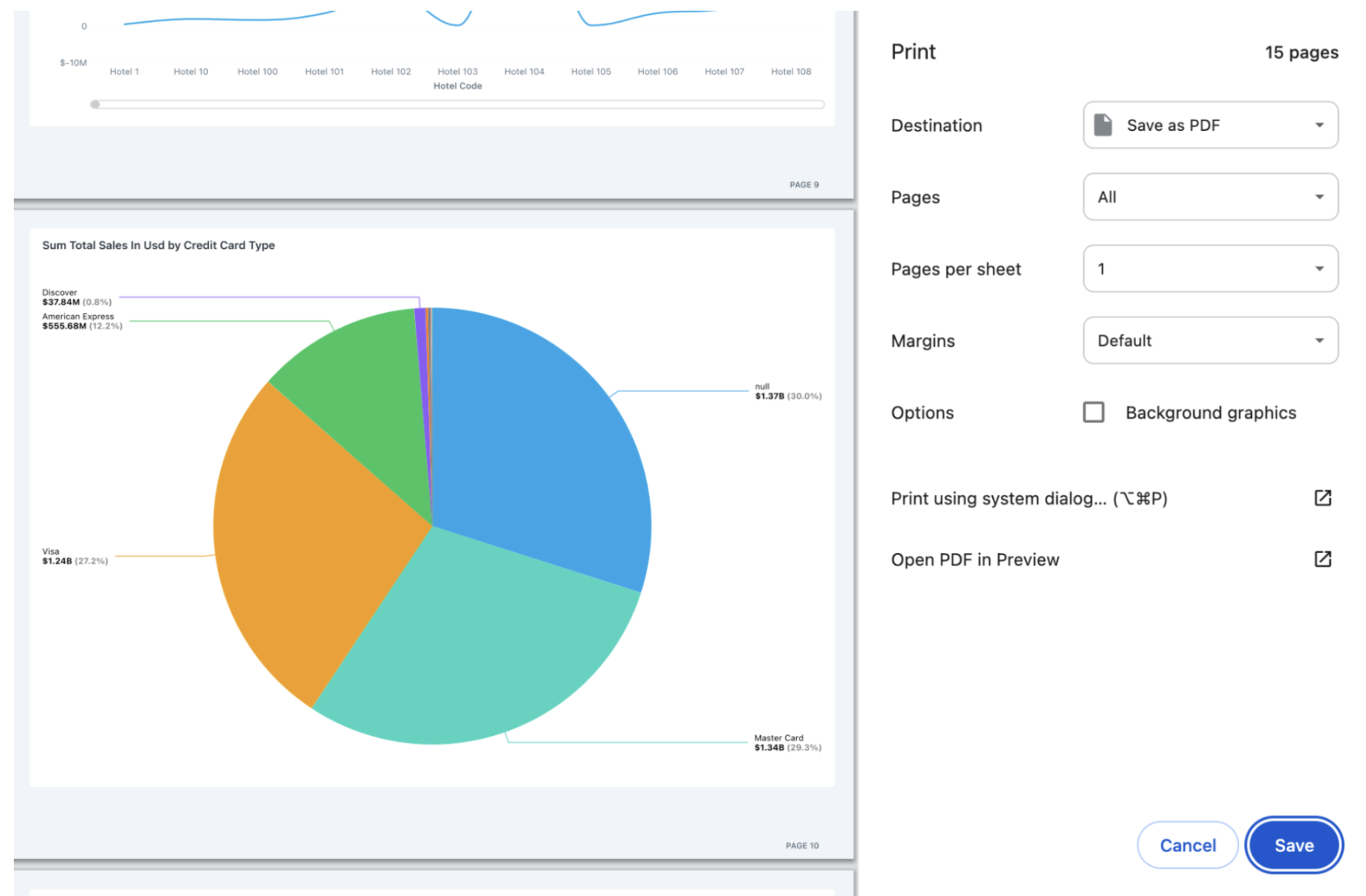
- Click Save as PDF to generate and download the document.
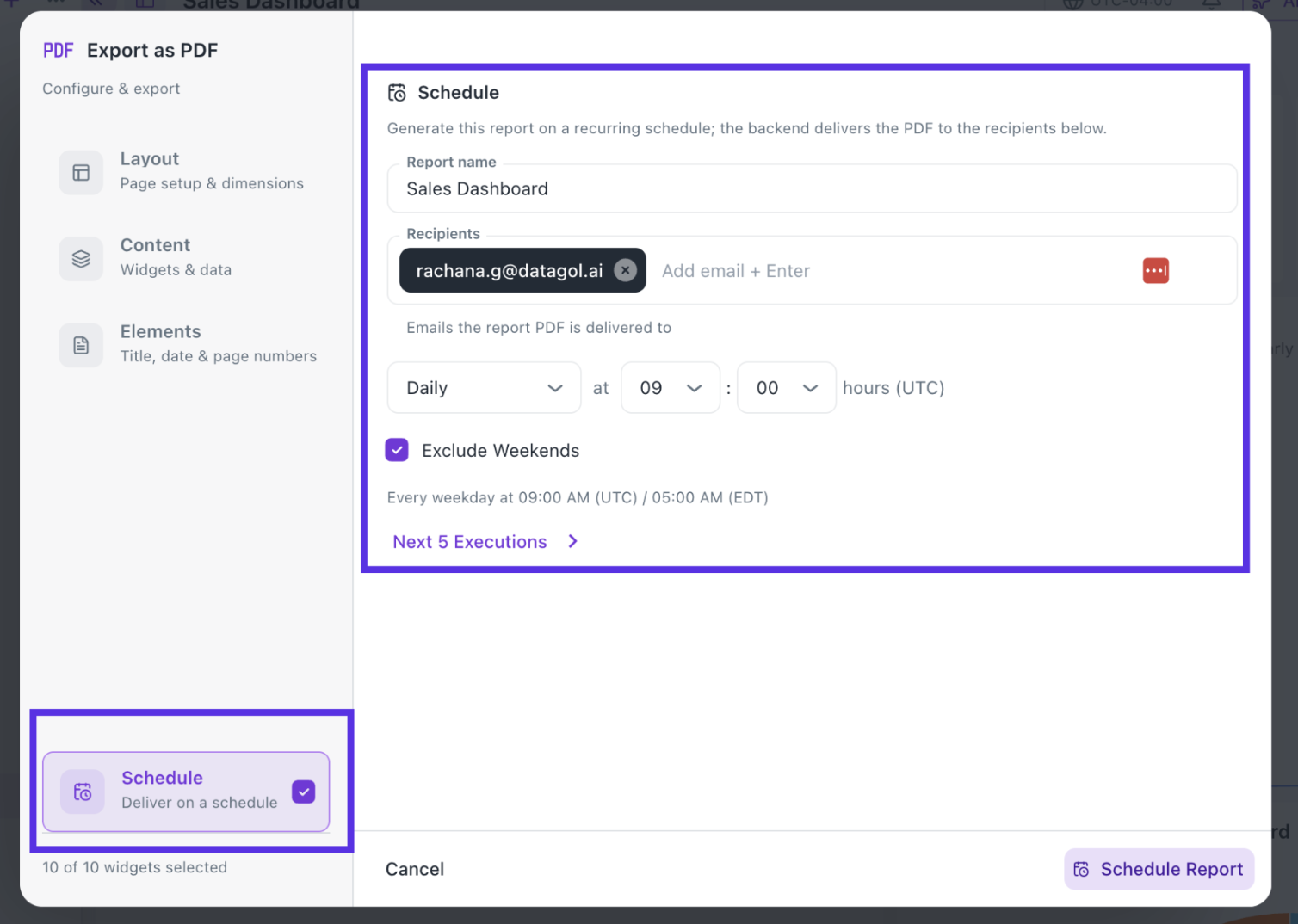
- Scheduling the PDF Dashboards:
Once you have configured all the settings , you can now setup the Schedule dashboard via email
Unsubscribe to Reports :
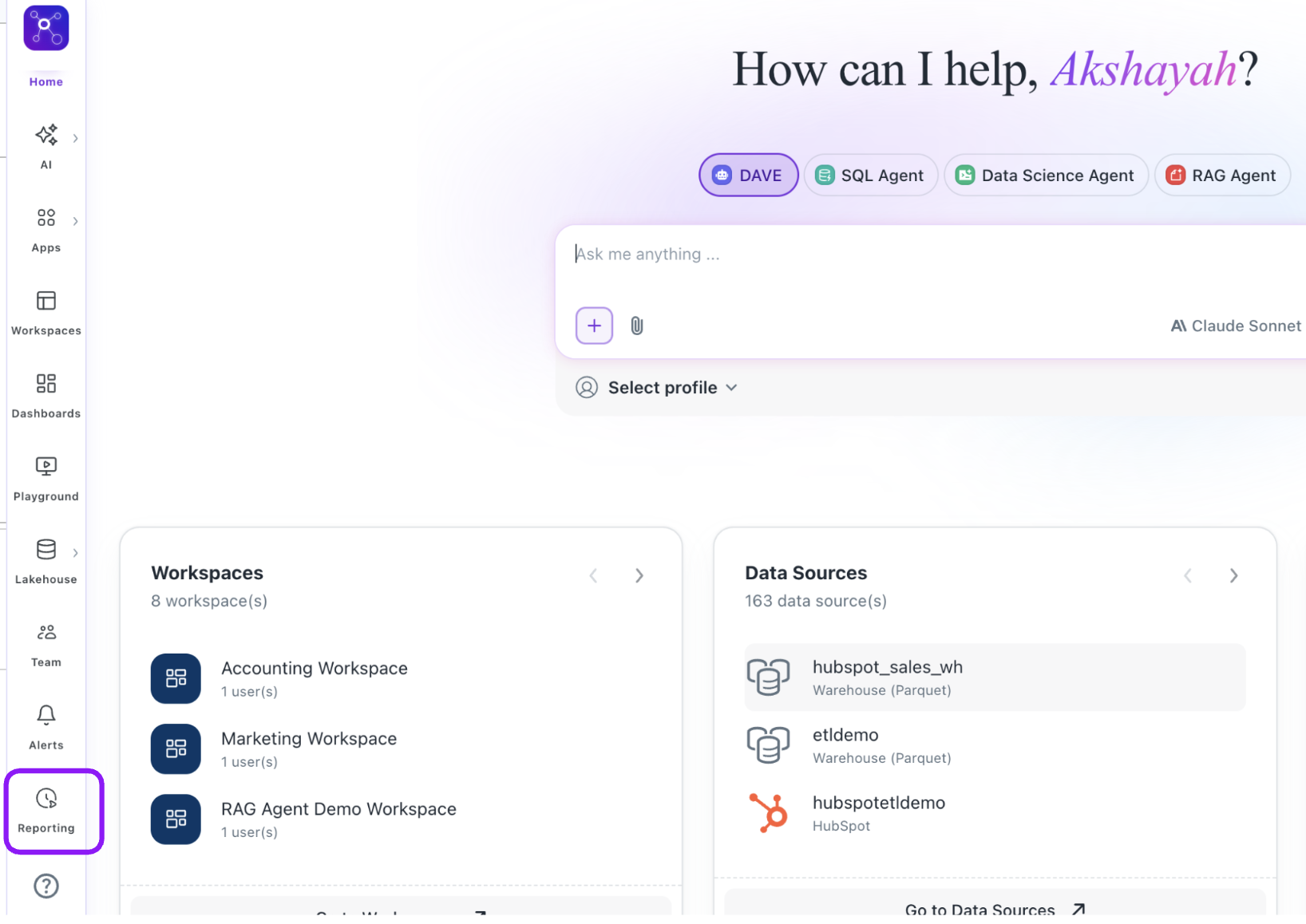
On DataGOL :
On the left nav bottom we have the reports section:
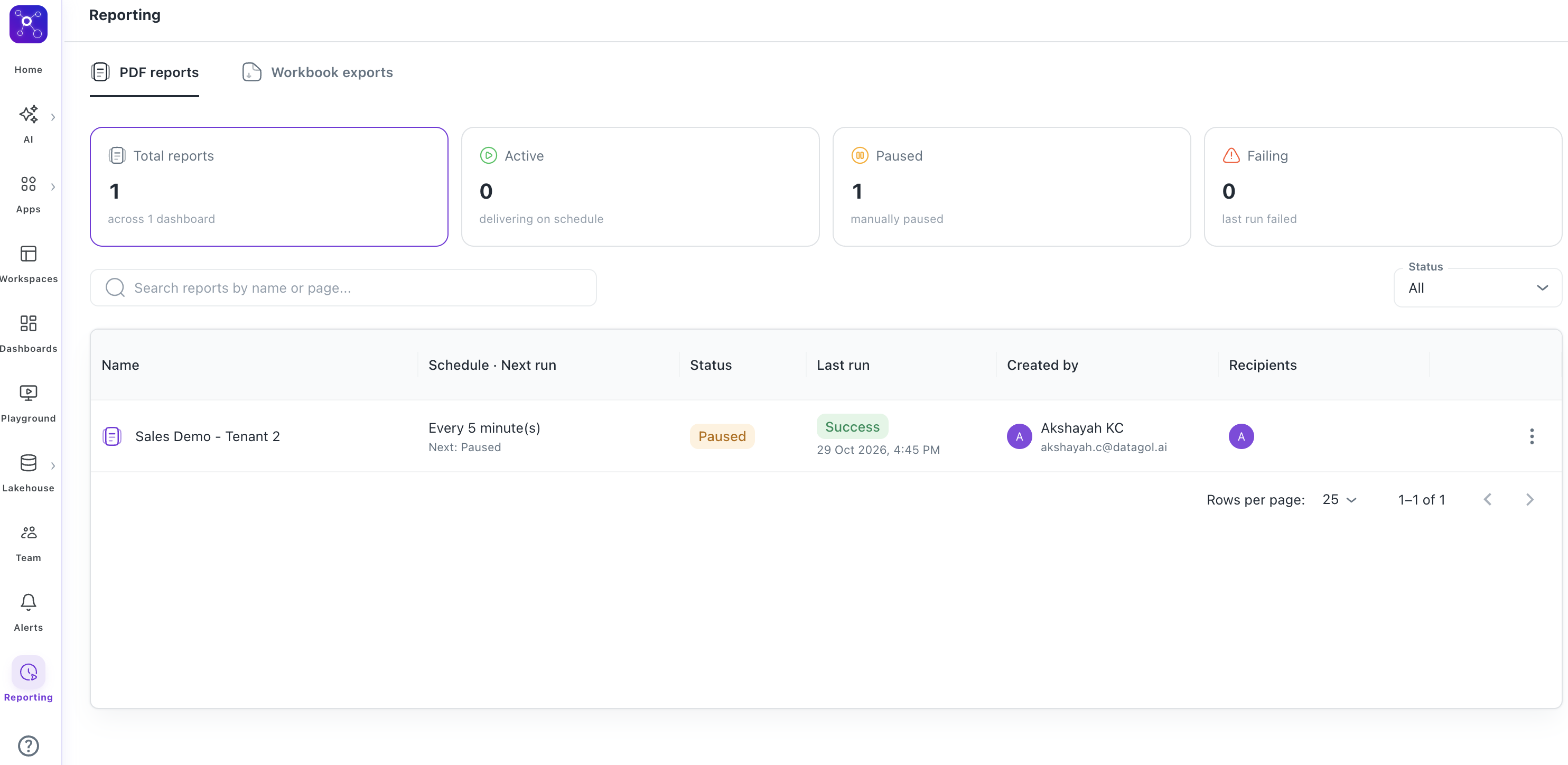
This gives you the overall status of the scheduled dashboards :
User can Edit / Delete or Reschedule it by selecting the menu option against each schedule :
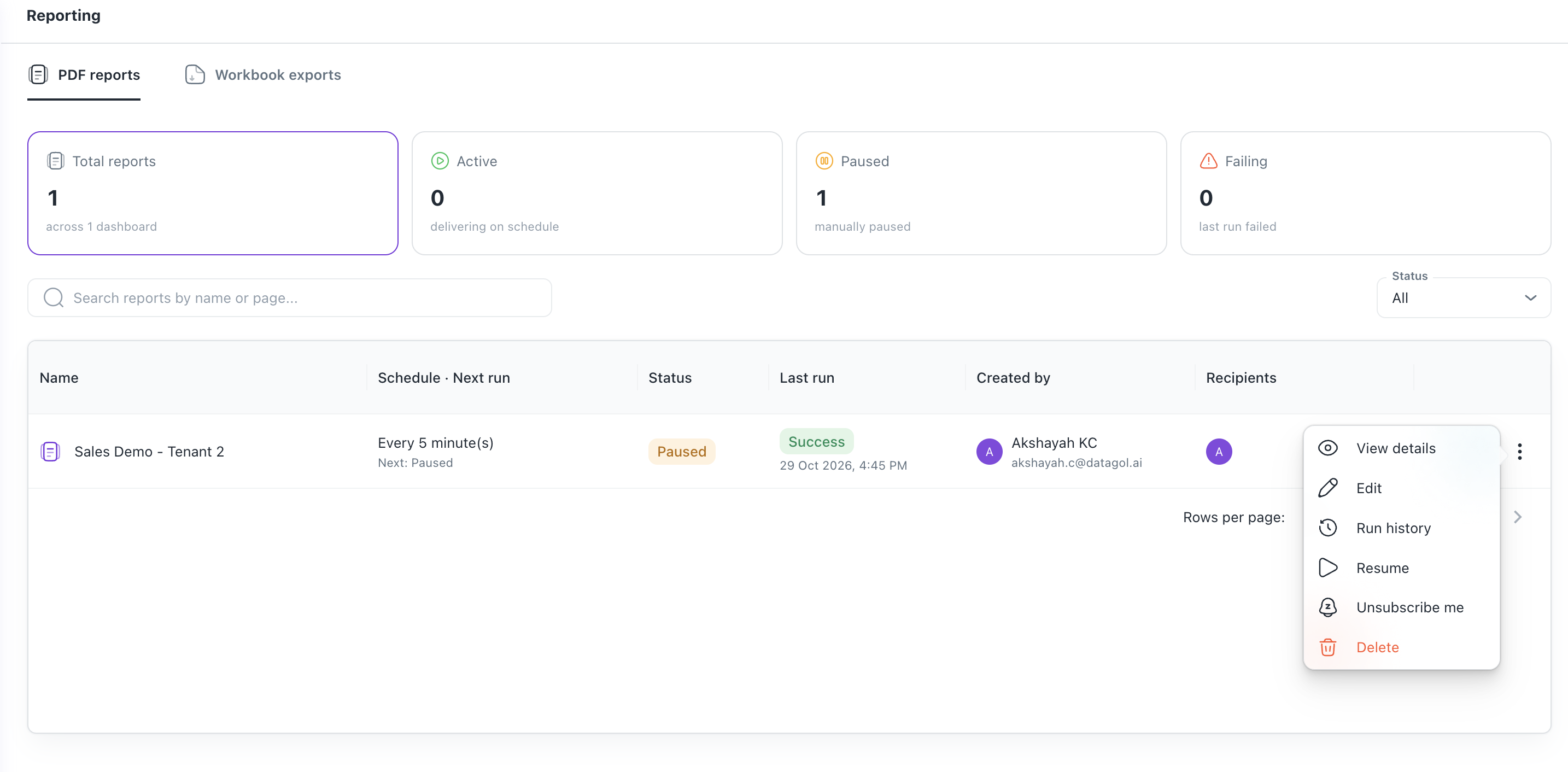
Editing existing plan :
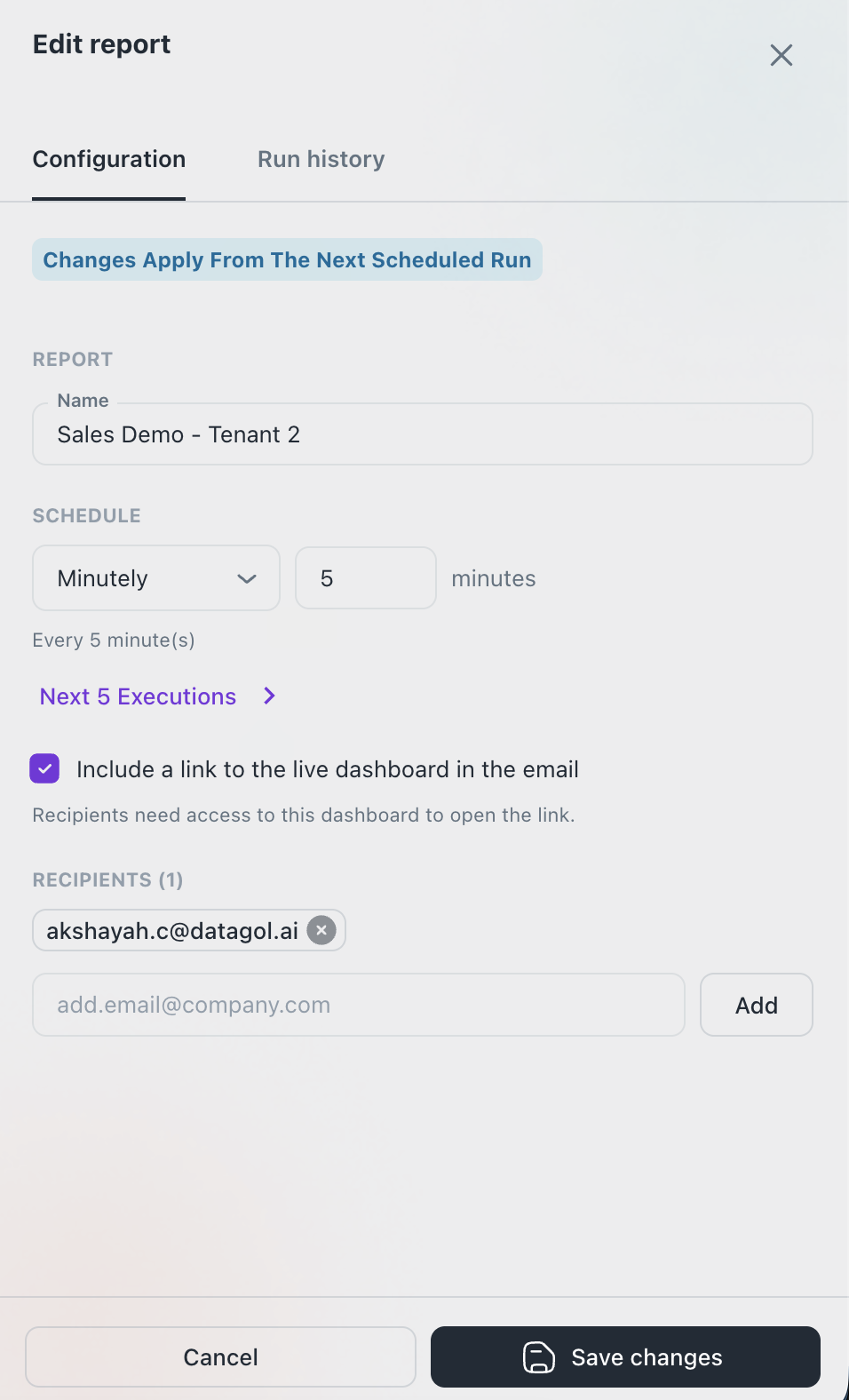
Hit the ‘view details’ option:
Now Select ‘Edit’ :
Edit the changes and save
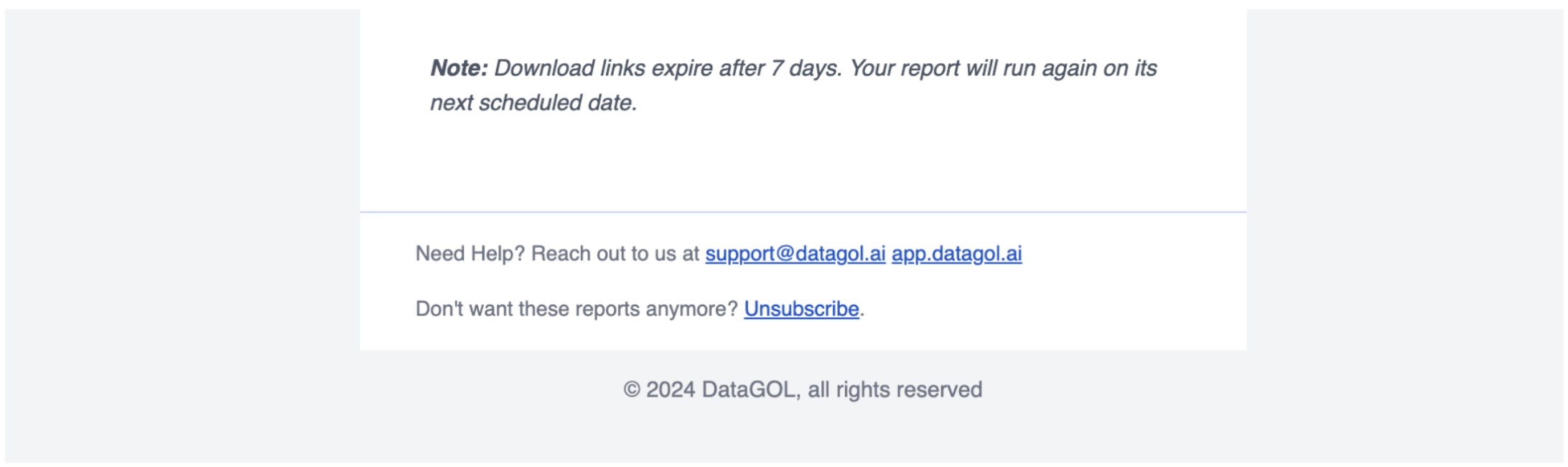
Incase the user does not have an DataGOL account , they can simply unsubscribe to the emails from footer of the email :
Was this helpful?