Knowledge Sources
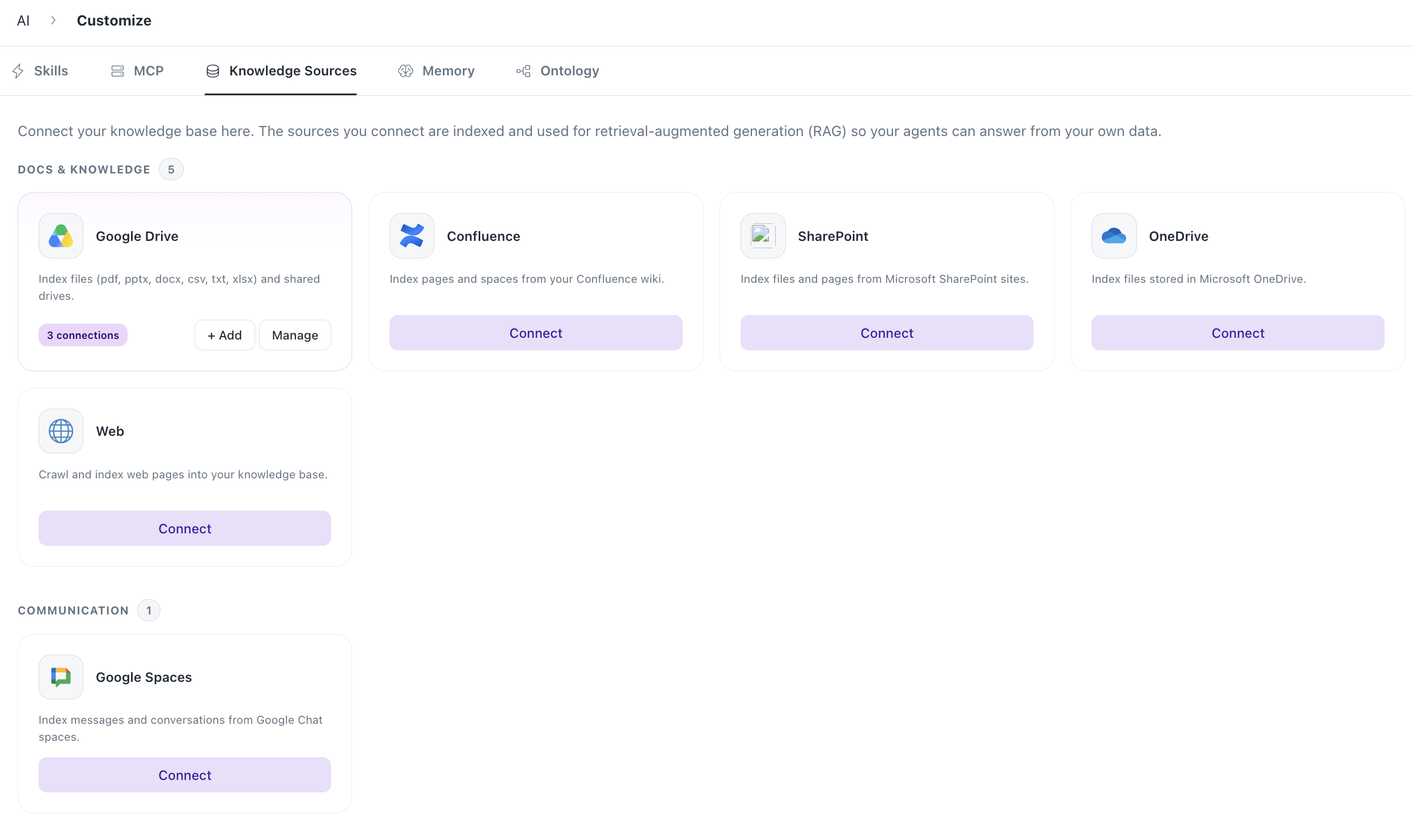
Connect your knowledge base to index content for retrieval-augmented generation (RAG), so your agents can answer from your own data.
Supported Connectors
Docs & Knowledge
| Connector | Description |
|---|---|
| Google Drive | Index files (PDF, PPTX, DOCX, CSV, TXT, XLSX) and shared drives. |
| Confluence | Index pages and spaces from your Confluence wiki. |
| SharePoint | Index files and pages from Microsoft SharePoint sites. |
| OneDrive | Index files stored in Microsoft OneDrive. |
| Web | Crawl and index web pages into your knowledge base. |
Communication
| Connector | Description |
|---|---|
| Google Spaces | Index messages and conversations from Google Chat spaces. |
Connecting a Source
Each connector follows a consistent 3-step setup flow (example: Google Drive):
- Authorize access (Required)
- Enter a Connection name (e.g. "Google Drive Connector")
- Click Connect with Google Drive to authenticate via OAuth
- Choose what to sync
- Sync Specific Folders — add one or more folder URLs (e.g.
https://drive.google.com/drive/folders/...) - Use + Add Folder URL to include additional folders
- Sync Specific Folders — add one or more folder URLs (e.g.
- Initial Sync
- Optionally check Start syncing right after connecting to begin indexing immediately upon setup Once configured, click Save connector to complete setup.
Connection Card Overview
Once at least one connection exists, each connector's card on the Knowledge Sources page shows:
| Element | Description |
|---|---|
| Connection count badge | Shows how many separate connections exist for that connector (e.g. "3 connections") |
| + Add | Opens the connection setup flow to create a new connection for this connector |
| Manage | Opens the connection management panel listing all existing connections |
Managing Connections (List View)
Clicking Manage opens a panel showing all connections for that connector:
| Column | Description |
|---|---|
| Name | Custom name given to the connection (e.g. "Akshayah_Connector") |
| Sync Type | Incremental (only syncs new/changed content) or Full (re-syncs everything) |
| Last Sync | Time since last sync ran, plus sync duration (e.g. "3 months ago (688ms)") |
| Status | Synced, or other sync states |
Actions per connection:
- Sync — manually triggers a new sync immediately
- ⋮ (more menu):
- Edit — opens connector configuration
- Delete — removes the connection permanently A Search connections bar lets you filter by name when there are many connections. + Add connection at the top starts a new connection setup.
Connector Configuration Panel
Opened via Edit, this panel has four tabs:
1. Overview (Sync Overview)
- Indexing Status — progress bar with % completed, last indexed time, and sync duration
- Indexing Options → Sync button to manually start indexing
- Record stats row: Total / Completed / Failed / In Progress / Skipped / Queued counts
- Indexed Records list — every synced file/page with name, type icon, and status (
Completed, etc.), each with a link-out icon to open the source - Search records and Status filter to find specific indexed items
2. Sync History
- Log of past sync runs (timestamps, duration, outcome)
3. Scheduling
- Configure automatic sync frequency (e.g. hourly, daily)
4. Settings
- Connector Name — editable label
- Status — live connection state (e.g. ✅ Connected)
- Sync Specific Folders — restrict indexing to specific folder URLs instead of the whole drive
- Paste a folder URL (e.g.
https://drive.google.com/drive/folders/...) - Green checkmark confirms the folder resolves correctly, with folder name shown below
- Trash icon removes a folder from the sync list
- + Add Folder URL to add more folders
- Paste a folder URL (e.g.
- Refresh button (top right) to reload connector state
Was this helpful?